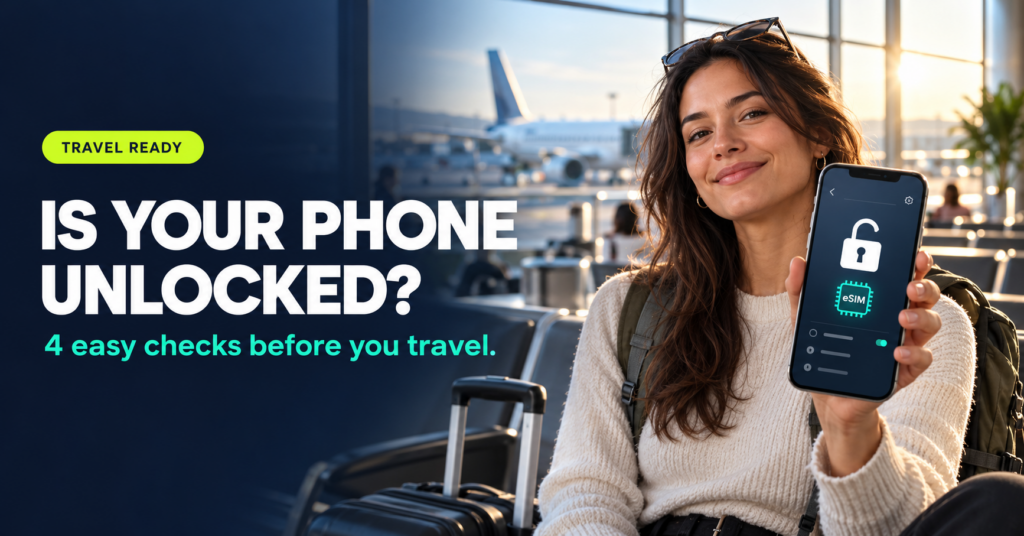
Knowing how to tell if your phone is unlocked can prevent a frustrating connectivity problem when travelling. Before purchasing a travel eSIM, you need to confirm that your phone supports eSIM technology and is not locked to its original mobile carrier.
A phone can be eSIM-compatible but still carrier locked. In that situation, you may be able to install an eSIM profile but remain unable to connect to another provider’s network.
Fortunately, you can check whether your phone is unlocked in a few minutes. This guide explains four reliable methods for iPhone and Android, the difference between carrier locking and other phone restrictions, and what to do if your device is locked.
How to Tell If Your Phone Is Unlocked: 4 Reliable Checks
The four most reliable checks are:
- Check the Carrier Lock status in your iPhone settings.
- Test the phone with a SIM or eSIM from another mobile provider.
- Contact the carrier that originally sold the phone.
- Ask the carrier to verify the device using its IMEI number.
The best method for how to tell if your phone is unlocked depends on whether you use an iPhone or Android device.
On an iPhone, the Settings menu normally provides a clear answer. On Android, available menus differ by manufacturer, model, carrier and software version. Testing another network or contacting the original carrier is therefore more reliable than depending on one Android setting.
What Does an Unlocked Phone Mean?
An unlocked phone can connect to compatible mobile networks other than the carrier from which it was originally purchased.
For example, if you purchased a phone through a mobile provider, that provider may have restricted the device so it only accepts its own SIM cards and eSIM profiles.
Once your phone is officially carrier unlocked, you can generally:
- Change mobile providers
- Insert a SIM card from another carrier
- Install a compatible travel eSIM
- Use local or international mobile plans
- Keep your existing physical SIM while adding a travel eSIM
- Switch mobile data between two installed lines, if supported
However, unlocking does not guarantee that the phone will work with every network.
The device must also support the relevant network frequencies, mobile technology and eSIM features. An unlocked phone that lacks the required network compatibility may still be unable to connect.
Carrier Lock, SIM PIN and Screen Lock Are Different
Several phone restrictions are commonly confused with a carrier lock.
Carrier or Network Lock
A carrier lock restricts the phone to a particular mobile provider. This is the lock that matters when installing an eSIM supplied by another provider.
If your phone is carrier locked, it may reject the new eSIM or prevent it from connecting to the supported network at your destination.
SIM PIN
A SIM PIN protects an individual physical SIM card or eSIM profile from unauthorised use.
Entering the wrong SIM PIN does not mean your phone is carrier locked. Several incorrect attempts may block the SIM and require a PUK code from the mobile provider.
Screen Lock
A passcode, password, pattern, fingerprint or facial-recognition lock protects access to your phone.
A screen lock has no connection to whether the device can use another mobile carrier.
Activation Lock
Apple’s Activation Lock and similar Android security features help prevent unauthorised use of lost or stolen devices.
Activation locks are separate from carrier restrictions and may require the original account holder’s credentials to remove.
Check 1: How to Check If an iPhone Is Unlocked
Apple provides a straightforward Carrier Lock status in the iPhone settings.
Follow these steps:
- Open Settings.
- Select General.
- Tap About.
- Scroll down until you find Carrier Lock.
- Check the message displayed next to it.
If you see No SIM restrictions, your iPhone is carrier unlocked.
If another carrier-lock message appears, your iPhone may still be restricted to its original network. Contact that carrier for confirmation.
According to Apple’s official unlocking guidance, “No SIM restrictions” indicates that the iPhone is unlocked. Apple also explains that only the mobile carrier responsible for the restriction can unlock the device.
What If Carrier Lock Does Not Appear?
The wording and menu layout may differ depending on the iOS version, region or carrier configuration.
If you cannot find the Carrier Lock field:
- Update the iPhone to the latest supported version of iOS.
- Restart the device.
- Check the About screen again.
- Test the phone with another carrier’s SIM or eSIM.
- Contact the original carrier and provide your IMEI.
Do not assume the phone is unlocked simply because the Carrier Lock field is missing.
Check 2: Test a SIM or eSIM From Another Carrier
Testing another carrier’s active SIM is one of the clearest ways to determine whether a phone is unlocked.
You need a physical SIM or eSIM supplied by a mobile provider other than the one associated with your phone.
Test With Another Physical SIM
Follow these steps:
- Turn off your phone.
- Remove the existing SIM card.
- Insert an active SIM from another carrier.
- Turn the phone back on.
- Allow it a few minutes to detect the network.
- Try making a call or using mobile data.
Possible results include:
- The phone connects successfully: It is probably carrier unlocked.
- “SIM not supported” appears: The phone is probably carrier locked.
- A network-unlock code is requested: The phone is carrier locked.
- The SIM is detected but there is no service: This is not conclusive.
A no-service message may also appear if the test SIM is inactive, has no balance, lacks local coverage or is incompatible with your phone.
Use an active SIM with known coverage to avoid mistaking an account or network problem for a carrier lock.
Test With Another eSIM
If your phone supports eSIM, you may also be able to test it with another provider’s eSIM profile.
Follow these steps:
- Confirm that the device supports eSIM.
- Add the new eSIM using the provider’s installation instructions.
- Enable the new line.
- Select it for mobile data.
- Allow the phone to search for a network.
- Check whether it connects successfully.
Successfully downloading an eSIM does not always prove that the phone is unlocked. Some devices can install a profile but prevent it from connecting to another carrier.
Do not delete an existing working eSIM simply to perform this test unless you know it can be reinstalled.
Check 3: Contact the Original Mobile Carrier
Contacting the carrier that sold or financed the device is usually the most authoritative method.
Ask the carrier:
- Is this phone currently carrier unlocked?
- Is the device eligible to be unlocked?
- Is there an outstanding payment requirement?
- Is an unlock request already pending?
- Will the unlock happen automatically?
- Will I receive a network-unlock code